
You have not yet added any article to your bookmarks!
Join 10k+ people to get notified about new posts, news and tips.
Do not worry we don't spam!

Post by : Samjeet Ariff
Picture this: You’re set to snap a photo or update an app when an all-too-familiar alert pops up: “Storage Almost Full!” It’s an irritating setback, isn’t it?
However, your device may not be entirely filled as you think. Hidden files, seldom-used applications, and background data are silently consuming your storage space. Fortunately, a mix of smart adjustments and handy tips can resolve this issue effortlessly.
Let’s dive into the fundamental reasons your Android might continuously signal a full storage situation—and learn how to quickly reclaim that space without sacrificing important content.
Every app hoards temporary data, known as cache, which can accumulate over time, stealing valuable space.
To clear it:
Why it works:
Cache files are expendable. Erasing them can recover substantial megabytes or even gigabytes.
Expert tip: Focus first on social media apps, as they tend to fill with cache quickly.
Instead of manually deleting excess files, consider using applications such as Files by Google.
This tool:
Why it's beneficial:
It streamlines the cleaning process, saving time with just a few taps.
Often, we load our devices with apps we later forget, causing unnecessary space consumption.
To declutter:
Pro tip:
If it hasn’t been utilized in over a month, consider letting it go.
WhatsApp automatically downloads various media, which often takes up significant space.
To clean up:
Bonus tip:
Turn off auto-download to prevent future clutter.
Media files usually occupy the most room on your device.
Leverage Google Photos for secure backups.
Steps:
Why this helps:
You retain precious memories while freeing up device memory.
Your Downloads folder is often neglected and can gather a lot of unnecessary files.
To tidy up:
You may be surprised at how much space you regain.
Many Android devices feature Smart Storage technology.
To enable:
What it achieves:
Best part:
No need for manual clean-ups in the future.
Duplicate images and screenshots can quietly fill up your storage capacity.
How to resolve:
Pro tip:
Screenshots often pile up—be sure to clean them out weekly.
Apps such as YouTube, Spotify, or Netflix keep offline downloads that take up space.
To clear:
Why this matters:
Offline files can consume significant gigabytes without notice.
Heavy applications can be storage hogs and slow down device performance.
Consider lighter alternatives like:
Benefit:
Reduced storage usage leads to improved device speed.
If compatibly, an SD card can simplify your storage woes.
Transfer:
Extra tip:
Set your camera to automatically save images directly onto the SD card.
Apps can retain hidden data even post-cleaning.
To reset preferences:
This action doesn’t erase personal data but may uncover hidden space.
The “storage full” dilemma is more prevalent than one might assume—it’s also simpler to resolve than anticipated.
By applying these savvy Android settings and straightforward tricks, you can:
Take proactive steps today: Start with clearing cache and WhatsApp storage—you’ll notice results almost immediately.
Q1. Why do I still see full storage warnings after deleting files?
Hidden data like cache, app files, and system storage often obscure the total space.
Q2. Is it advisable to regularly clear cache?
Absolutely! It’s a safe way to enhance performance.
Q3. What typically consumes the most storage on my device?
Common culprits include images, videos, applications, and WhatsApp files.
Q4. How frequently should I perform storage cleaning?
For optimal performance, aim for every 2-3 weeks.
Q5. What’s the quickest method to free up space?
Utilize Files by Google or discard large media files and unused applications.
#Tech News #Global Technology Trends #Android Storage Problem







PM Modi Pays Tribute to Mahatma Gandhi, Urges People to Support Khadi
PM Modi pays tribute to Mahatma Gandhi on Gandhi Jayanti and urges citizens to support Khadi and the

Amazon Seeks to Offload $8 Billion in Nvidia Chips to Investors
Amazon plans to move $8 billion in Nvidia chips to investors, using a new financing model to strengt
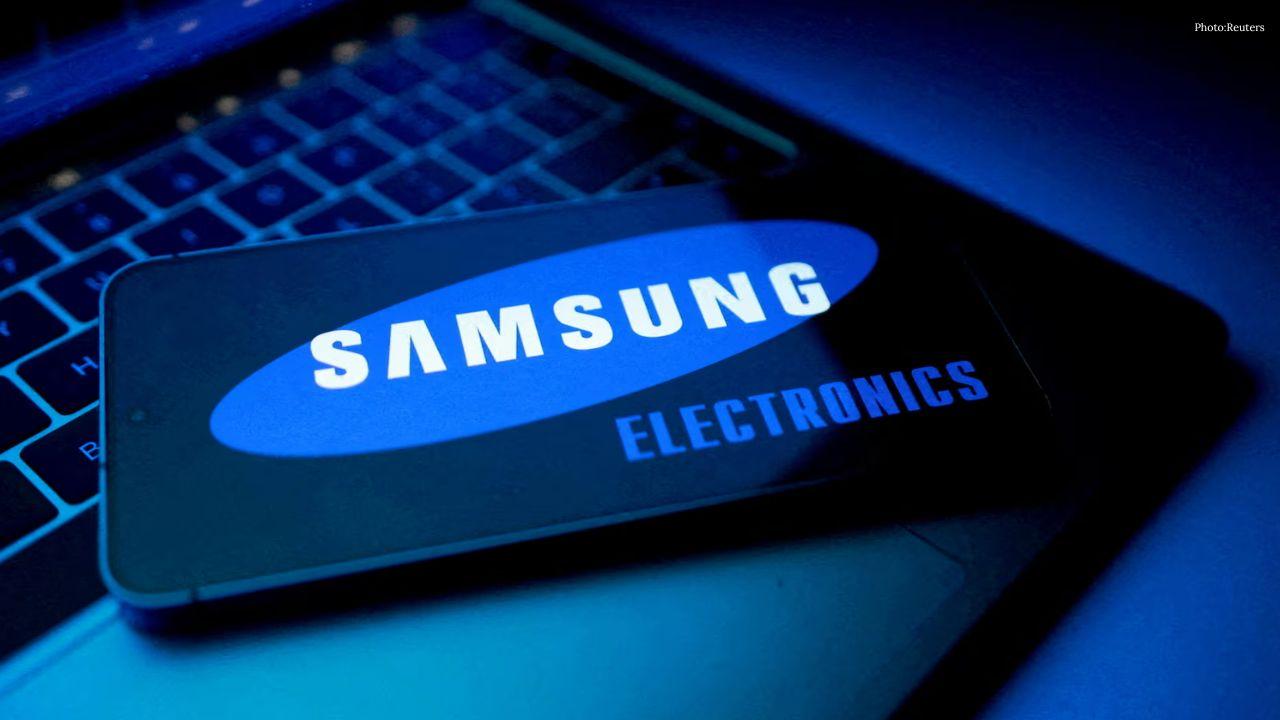
Samsung Raises Galaxy S26 Prices as Memory Chip Costs Rise
Samsung raises Galaxy S26 prices in South Korea as rising memory chip costs put pressure on smartpho

Lewis Hamilton Calls Singapore Grand Prix One of F1's Toughest Races
Lewis Hamilton discusses the demanding Singapore Grand Prix and brings Plus44 and Almave to Singapor

Denmark's Pandora Opens World's Largest Jewellery Factory in Vietnam
Pandora opens its largest jewellery factory in Vietnam, expanding global production, strengthening s

Gautam Gambhir Questions Batting-Friendly Pitches After India's Record ODI Chase
Gautam Gambhir questions batting-friendly ODI pitches after India’s record chase, calling for a bett