You have not yet added any article to your bookmarks!
Join 10k+ people to get notified about new posts, news and tips.
Do not worry we don't spam!
Post by : Samjeet Ariff
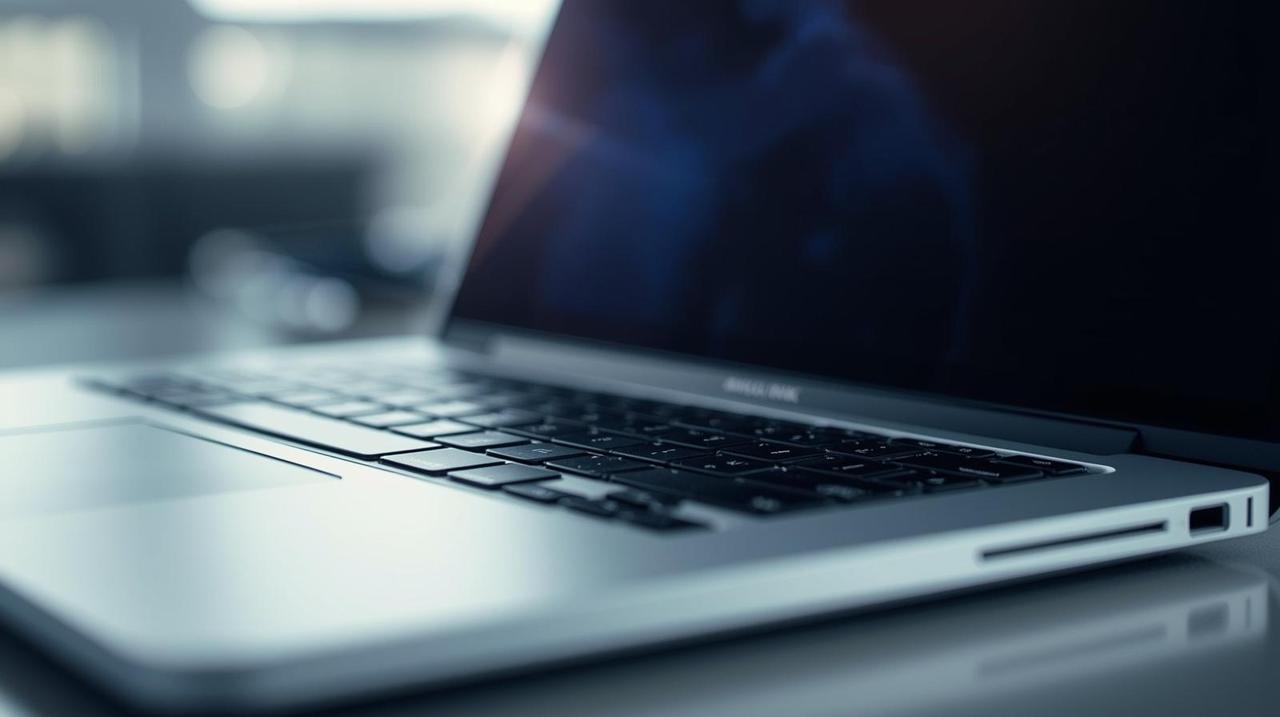
When your laptop slows down, it’s common to consider a replacement. However, often the slowdown is not due to the laptop’s hardware but rather factors such as system clutter, outdated software, or background applications. With proper maintenance and tweaks, you can rejuvenate an old laptop without investing in a new one. The focus is to alleviate excess load from the system to restore its efficiency. Below are ten practical steps that can enhance performance on both Windows and macOS, explained so you can give your device a new lease on life.
Laptops accumulate temporary files, caches, logs, and remnants from uninstalled programs over time. These can take up valuable storage space and degrade performance, particularly in laptops with limited space.
Temporary files occupy space crucial for optimal operation. When storage exceeds 80% capacity, both Windows and macOS start to lag.
Utilize built-in utilities such as Disk Cleanup (Windows) or Storage Management (macOS) to remove temporary files, caches, old updates, and unnecessary system data.
Old laptops often get bogged down by software that is rarely used.
Unused software still occupies internal space and may run background processes that consume resources.
Evaluate installed applications, uninstall ones you don’t need, and eliminate outdated antivirus programs, trial versions, or duplicate apps.
Many applications automatically load during startup, increasing boot time and utilizing RAM right from the start.
Access Task Manager on Windows or Login Items on macOS and turn off unnecessary startup applications.
Only retain vital services, antivirus tools, and drivers. Others may contribute to a sluggish boot.
Heavy browsers can significantly impact the performance of older hardware.
Multiple tabs and extensions consume RAM, and some extensions account for increased processor use.
Regularly clear browser data, disable unnecessary extensions, and limit active tabs. Consider using lighter alternative browsers.
System updates enhance performance, resolve bugs, and patch security vulnerabilities.
Updates are designed to optimize performance, even for older hardware, and eliminate outdated components.
Avoid major OS upgrades that may be too demanding for your hardware; opt for stable, recommended versions.
A messy desktop may seem trivial, but every icon is considered a file that loads at startup.
A crowded desktop prolongs boot time and slows down graphical performance.
Retain only essential shortcuts. Organize files into folders instead of cluttering the desktop.
Older laptops have a hard time performing well when visual effects are set to maximum.
Lowering visual effects and animations reduces the load on the system.
In Windows, modify Performance Options to “Adjust for best performance.” In macOS, deactivate transparency and limit motion effects.
Malware and excessive security software can drain memory, bandwidth, and CPU resources.
Harmful applications may run covert processes that burden system resources, while multiple security programs can hinder performance.
Opt for a single trusted antivirus and perform a comprehensive system scan to identify and eliminate threats.
Data-heavy files like movies and high-resolution images quickly consume disk space.
Insufficient disk space typically results in degraded performance, especially on older hard drives.
Transfer large files to external drives or cloud storage to maintain optimal internal storage levels.
Over time, hard disk drives get fragmented, slowing data access speeds.
For laptops equipped with an HDD, regularly run the Disk Defragment tool. For SSDs, run the built-in optimization tool—never defragment SSDs.
To revitalize an old laptop, recognizing what hinders its performance is key. Most issues stem from unnecessary applications, cluttered files, and other optimizations. By implementing these strategies, even a vintage laptop can regain speed, efficiency, and dependability. No need to rush into purchasing new hardware; proper maintenance can prolong a laptop’s life. If the performance issues persist after these fixes, considering a RAM upgrade or switching from HDD to SSD could yield significant improvements, but these extras are not obligatory.
This content delivers general troubleshooting ideas aimed at boosting laptop performance. Results may differ based on device condition and hardware. It is advisable to back up data prior to making changes. For hardware-related concerns, consult a trained technician.










Beauden Barrett Opens Up About Mental Struggles During All Blacks Exile
Beauden Barrett discusses his confidence struggles after missing six tests, his return against Austr

IMF Says AI Investment Supports Global Growth Despite Energy Shock
IMF says AI investment is supporting global growth near 3%, with Asian economies benefiting from ris

Will O'Rourke Ruled Out of New Zealand's India Series
New Zealand fast bowler Will O'Rourke will miss the India series with hamstring and calf injuries as

AI Companies Expected to Drive Most US Earnings Growth in Q3
AI companies are expected to drive US third-quarter earnings growth as investors assess tech profits

Money Market Funds See Record Inflows as Global Bond Selloff Intensifies
Global money market funds attract $153.81 billion as bond yields rise, inflation fears persist and i

Meta Bans TikTok Ads on Facebook and Instagram in Seven Countries
Meta has banned TikTok ads in seven countries, escalating competition over social media users, adver